

Your shoot, visible from product to result
Build the campaign by choosing what you want to see.
Add your products, choose the cast and direct the world around them. Shoodio keeps the complete shoot visible so changing one decision never means starting from a blank prompt.
Shoodio is a visual fashion studio where your products, models, locations and shooting choices stay connected from first setup to final image.
required to create a shoot
Available nowgenerated variations
Available nowgeneration modes for different needs
Plan-dependent
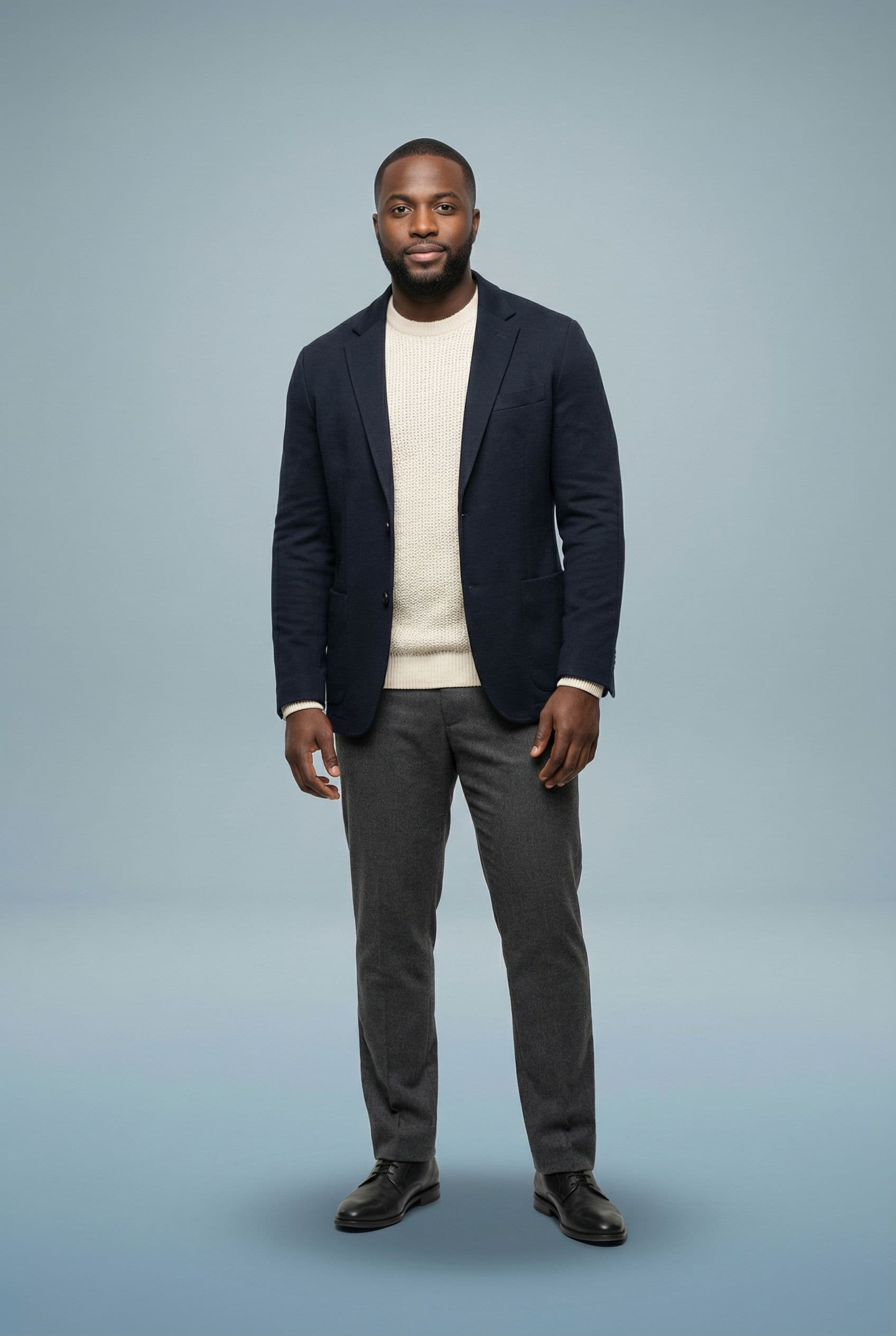
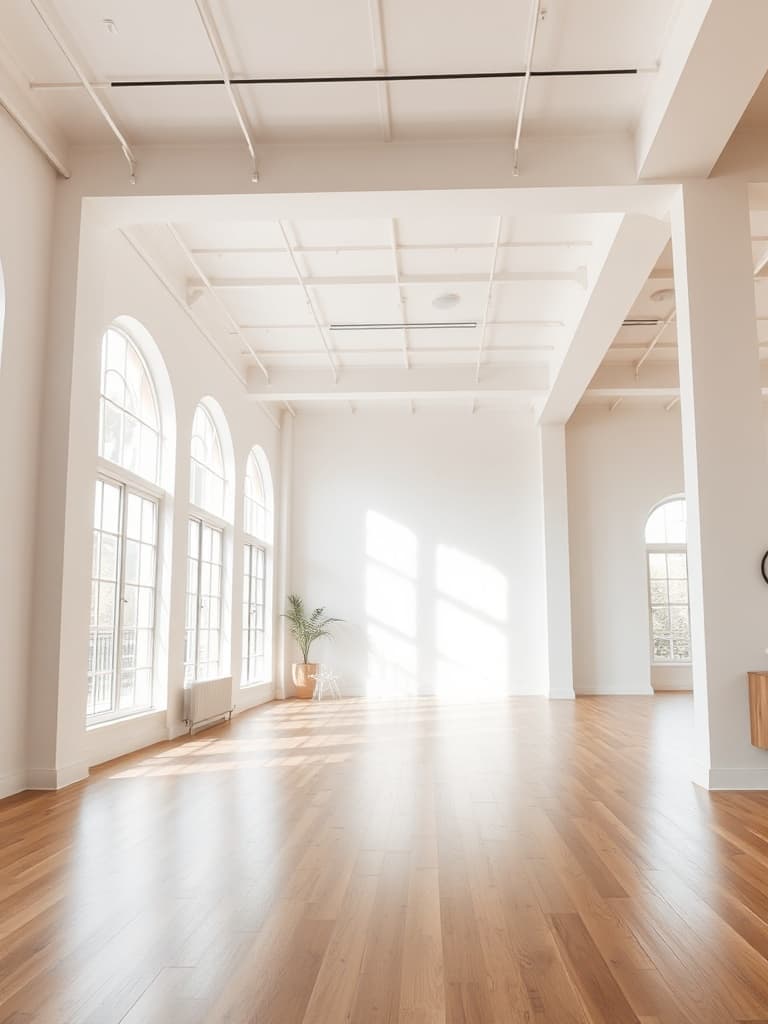


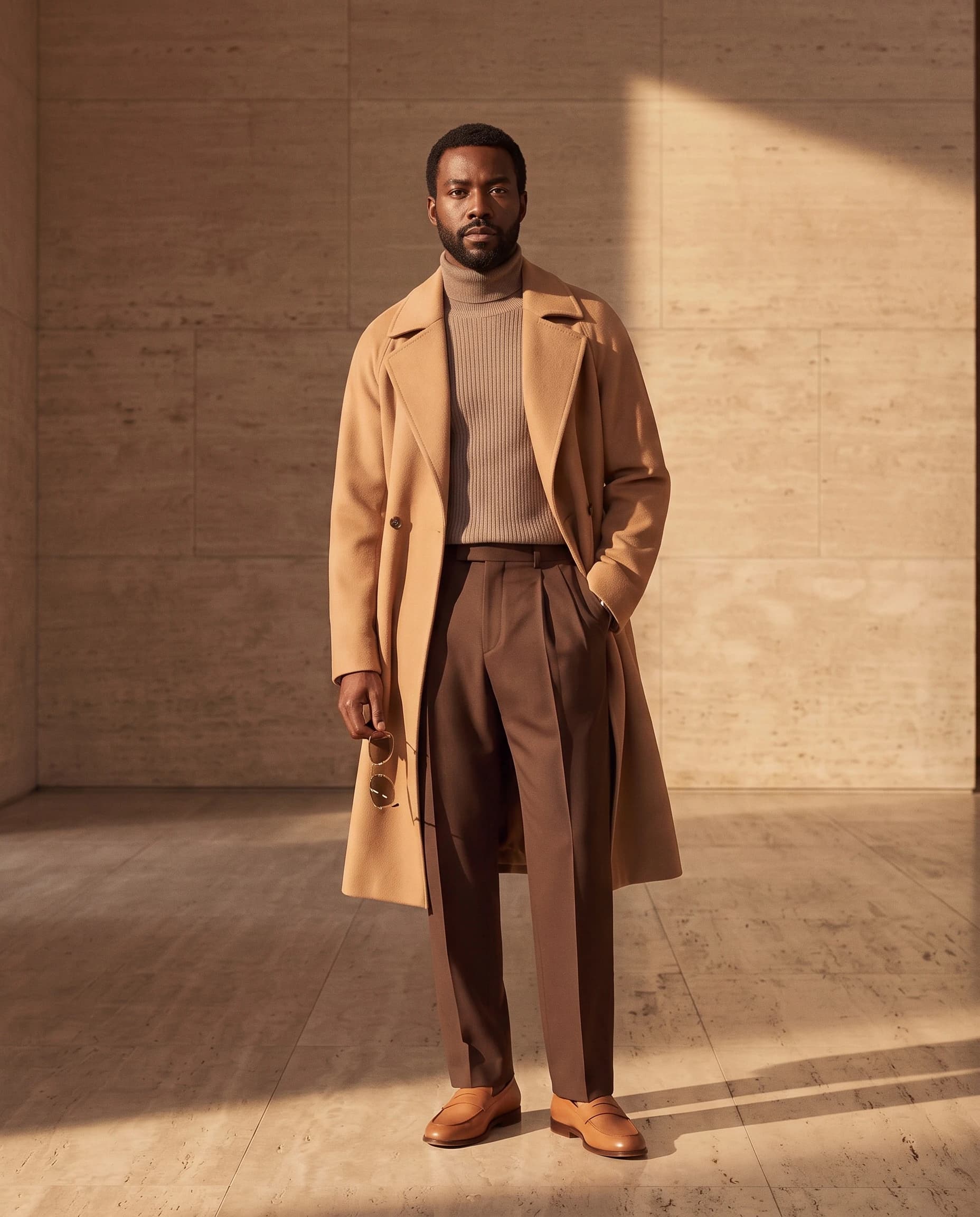
01 · Build
Your whole shoot, arranged on one visual board.
Cast, products, background and shooting choices remain separate and easy to change. You always know which elements belong to the image you are creating.
- Arrange and change every part of the shoot on the board
- Keep cast, products and scene choices clear at a glance
02 · Direct
Try the choices that shape a Shoodio shoot.
This interactive preview is based on the real Shoodio structure and includes representative choices for variations, format, pose, photography style, optional instructions and generation mode. It is a guided preview, not the signed-in Studio.
- Ten common output ratios
- Pose and style remain explicit selections
- Quality Mode is clearly marked for Pro and Agency
03 · Return
Results come back to the campaign context.
Generated images return to the campaign board and stay with the setup that created them, making variations easy to compare.
- Compare variations from one controlled setup
- Continue from generated frame to media and enhancement workflows
From setup to result
How to create a fashion shoot in Shoodio
A prompt-free route from product asset to generated frame.
- 01Add the cast
Place one to three models on the board and set model-specific styling.
- 02Apply the products
Assign up to five distinct apparel assets to each model.
- 03Connect the setting
Choose a background and its compatible environment controls.
- 04Set the shot
Select ratio, pose, style, variations and an available generation mode.
- 05Generate
Create the shoot with no text prompt, or add an optional instruction for one extra detail.
Questions, answered precisely
FAQ
Is the Shoodio Studio a form or a board?+
It is a visual board where models, backgrounds, shooting choices and generated results stay together and easy to understand.
Can I create without a prompt?+
Yes. A connected model and the selected visual controls define the shoot. The text instruction is optional.
Is the walkthrough the live Shoodio Studio?+
No. It is an interactive preview based on the real Shoodio structure and representative choices. The complete Studio opens after sign-in.
Build the campaign where you can see every decision.
Open a board and start with the model or the product already in front of you.